 Aging Parents
Setting Up Location Sharing With Grandparents (Without a Headache)
One-sentence rule: fix the settings that will silently break things before you turn anything on. Sort battery optimisation, permission levels, and text size first, frame it as a two-way arrangement rather than a monitoring request, and leave behind a one-page cheat sheet with pictures, because the phone call two weeks later is always 'it stopped showing me.'
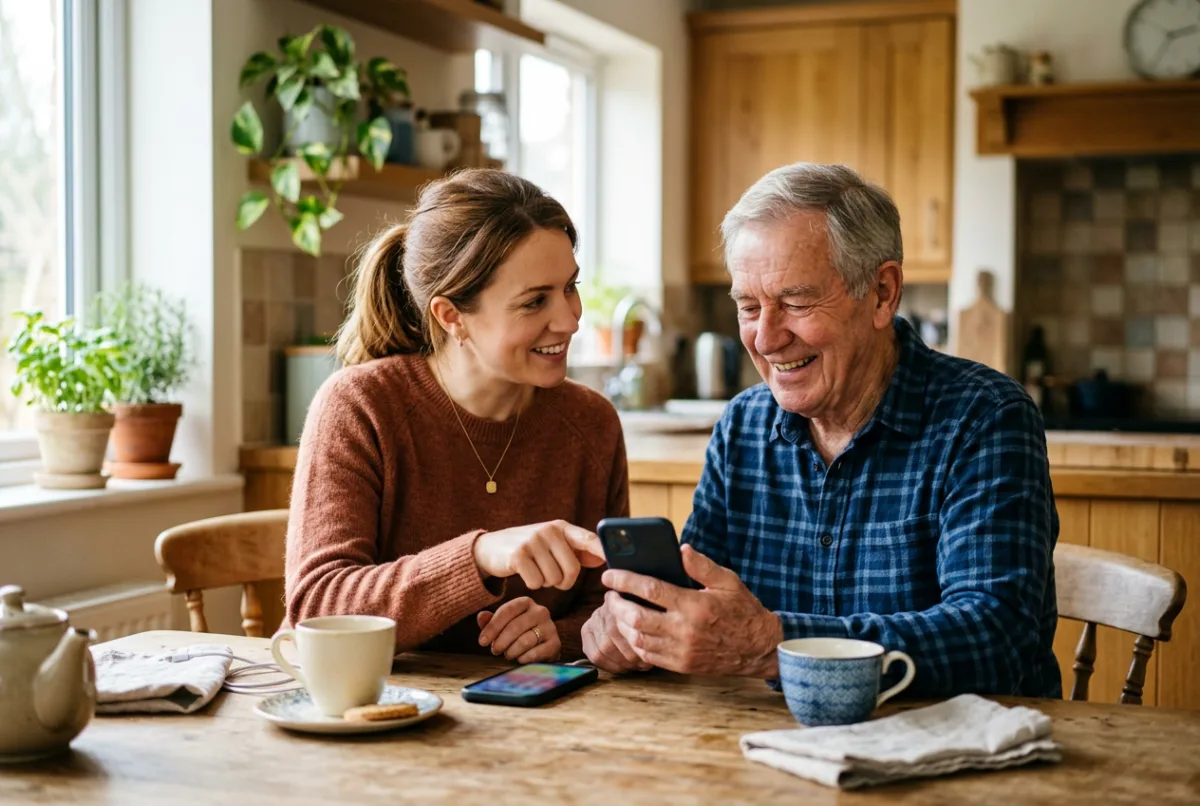
There's a particular kind of setup session that goes sideways fast: you open the app store, hand over the phone, and start narrating instructions while your parent nods politely and forgets the third step before you've said the fifth. Twenty minutes later nothing works, everyone's a little frustrated, and you're both privately wondering if this was worth it.
It doesn't have to go that way. Almost every failure in these setups traces back to one of a handful of predictable culprits, a battery optimiser silently killing the app in the background, a permission accidentally set to 'only while using,' text too small to read comfortably, or simply no written reminder left behind for the questions that come up after you've left. Fix those in advance and the actual setup takes about twenty minutes and rarely needs a follow-up call.
This is that setup plan: what to check before you start, a script for the conversation itself, the specific snags that trip up Android and iPhone users differently, and a cheat sheet worth leaving on the fridge.
What should you sort out before you even open the app?
A surprising amount of location-sharing frustration has nothing to do with the sharing app itself, it's the phone's underlying settings quietly working against it. Check these first, while you have hands-on access, because they're much harder to talk someone through over the phone later.
- Software updates, an outdated operating system can cause permission screens to look different from any tutorial you're following, or block the app from installing cleanly. Update first, even if it takes a few minutes.
- Storage space, very full older phones sometimes fail installs silently. A quick check avoids a confusing dead end.
- Apple ID or Google account sign-in, confirm it's already signed in and the password is known, since a forgotten account password can stall the whole session.
- Wi-Fi connection, a stable connection makes the install and setup dramatically smoother than relying on a weak cellular signal.
How should the actual 20-minute session go?
Treat it like a short, structured visit rather than an open-ended tech-support session. Having a rough script keeps both of you from getting lost in tangents about unrelated phone problems that inevitably surface once the phone is open.
- 1Minutes 0–3: the conversation. Explain what you're setting up and why, in one or two sentences, before touching the phone. (More on this conversation below.)
- 2Minutes 3–8: settings first. Increase text size, check notification volume, confirm Wi-Fi and account sign-in are working.
- 3Minutes 8–15: install and connect. Download the app together, create or join the family group, and set permissions to 'always allow' location rather than 'while using.'
- 4Minutes 15–18: test it live. Have them walk to another room and check that their location updates on your phone, and vice versa, seeing it work in front of them does more than any explanation.
- 5Minutes 18–20: leave the cheat sheet. Hand over a one-page printed guide (see below) and point out where it will live, taped inside a cupboard door, on the fridge, wherever they'll actually see it.
What accessibility settings actually make a difference?
It's tempting to skip straight to the location-sharing app, but a few minutes on general accessibility settings often prevents more confusion than anything location-specific. Text that's too small to read comfortably means notifications get dismissed without being read. A notification sound that's too quiet or identical to every other alert means an arrival ping gets lost in the noise.
| Setting | Why it matters | Where to find it |
|---|---|---|
| Display text size | Smaller text means missed or ignored notifications | Settings → Display & Text Size / Font size |
| Notification sound | A distinct, audible tone helps important alerts stand out | Settings → Notifications → app-specific sound |
| Do Not Disturb schedule | Overly broad schedules can silently block alerts all day | Settings → Focus / Do Not Disturb |
| App icon on home screen | An app buried in a folder rarely gets opened voluntarily | Move it to the home screen during setup |
Be Closer shows your whole family on one private map, free to start.
Consent-first, never sold, and gentle on your battery. iOS and Android.
How do you have the consent conversation without it feeling like surveillance?
The framing matters as much as the setup itself. Location sharing with an aging parent works best, and lasts longest, when it's introduced as something mutual rather than something being done to them. 'I'd like us to be able to see each other's locations, so you know where I am too, and I can check in more easily if I'm worried' lands very differently from 'I want to track you.'
It's mutual, they see you too. That one sentence changes the entire tone of the conversation.
Be honest about what it will and won't be used for. It's reasonable to say plainly that you're not going to be checking constantly, and that the main use is peace of mind, knowing they made it home from an appointment, or being able to help if a call goes unanswered. Overpromising ('I'll only look if you don't call me back') and then checking casually anyway tends to erode trust faster than being upfront that you might glance at it now and then.
What are the common snags, and how do you fix them?
Almost every 'it stopped working' call traces back to one of a small number of causes, and most of them are worth checking during the original setup session rather than waiting for the problem to surface.
The usual suspects
- Android battery optimisers, many Android phones aggressively close background apps to save power, which silently stops location updates. Look for a 'battery optimisation' or 'battery saver' exception list and add the sharing app to it.
- iOS location permission set to 'While Using', this pauses updates the moment the screen locks. Go to Settings → Privacy → Location Services → [app] and set it to 'Always.'
- Notifications disabled entirely during a general phone cleanup, worth a periodic check, since these can get switched off by accident.
- Low Power Mode left on constantly, genuinely useful for battery life, but it can throttle background location updates if left on around the clock rather than just when the battery is low.
What should the one-page cheat sheet actually include?
A cheat sheet only works if it answers the two or three questions that will actually come up, in large print, with a picture if possible. Skip anything you didn't get asked during setup, a dense manual gets set aside, a single clear page gets kept.
- What the app icon looks like, and where it lives on the home screen.
- How to open it and confirm 'sharing is on', one screenshot, labelled.
- Who to call if something looks wrong (you, by name and number, not 'support').
- One line reassuring them what it does and doesn't do, 'this just shows my location and yours, nothing else.'
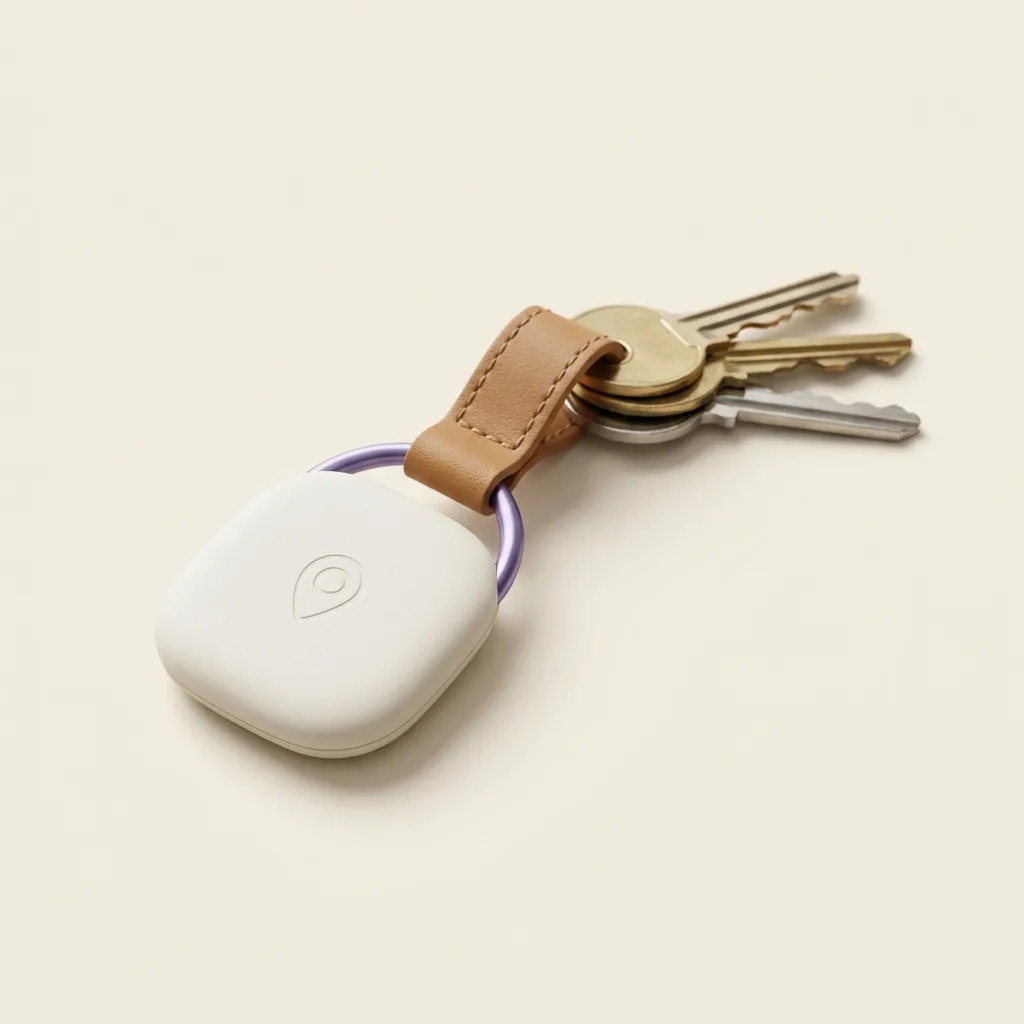
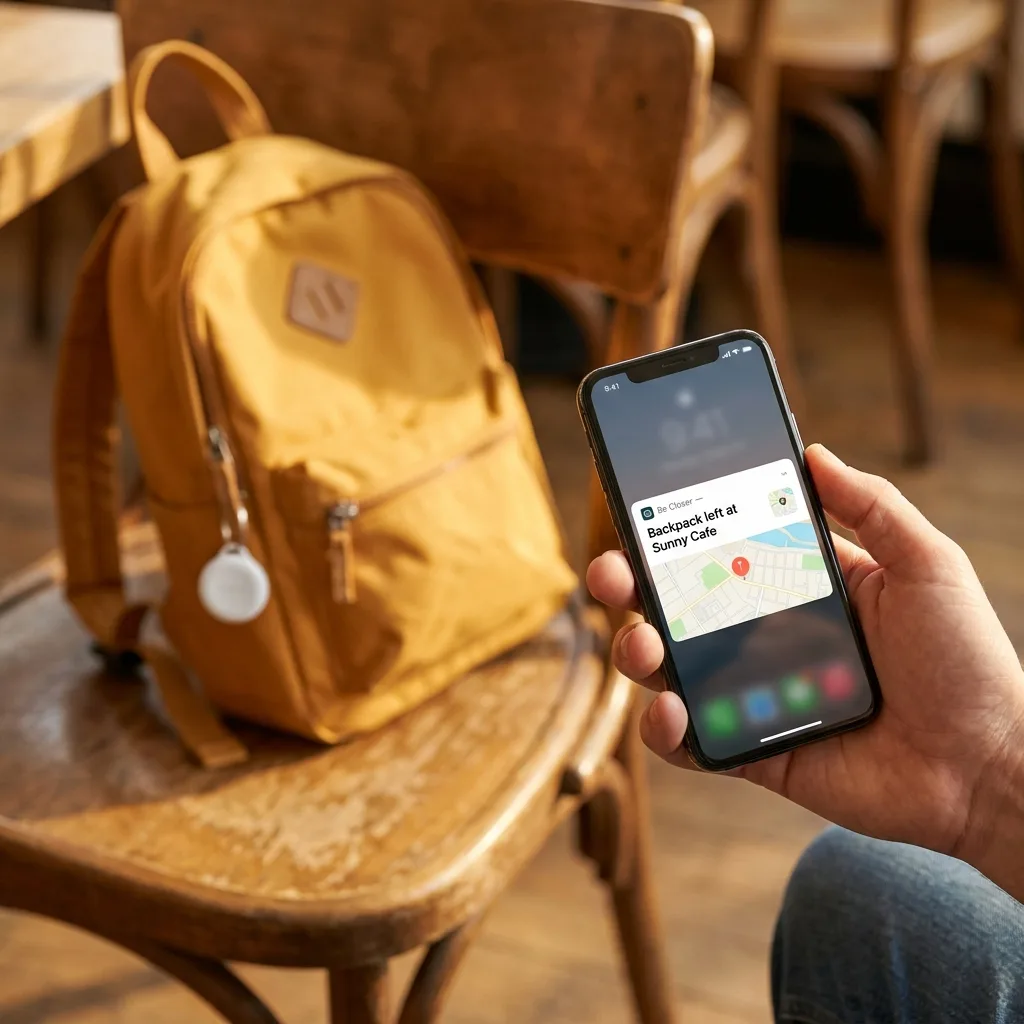
If your family is already using Be Closer for wider location sharing, the same principle applies to a physical tag on keys or a bag, a paired device with a battery that lasts months is often easier for someone less comfortable with phones to rely on than remembering to keep an app's permissions correctly set.
Frequently asked questions

Daniel covers privacy, consent and the technology under the hood. A dad who reads the settings screens so you don't have to, he believes the best family tech is the kind you can explain to your kid in one sentence, and that nothing should ever be tracked in secret.
Our guides are written by Be Closer's editorial voices and reviewed by the team behind the app. Questions? support@becloser.com
Published · Updated